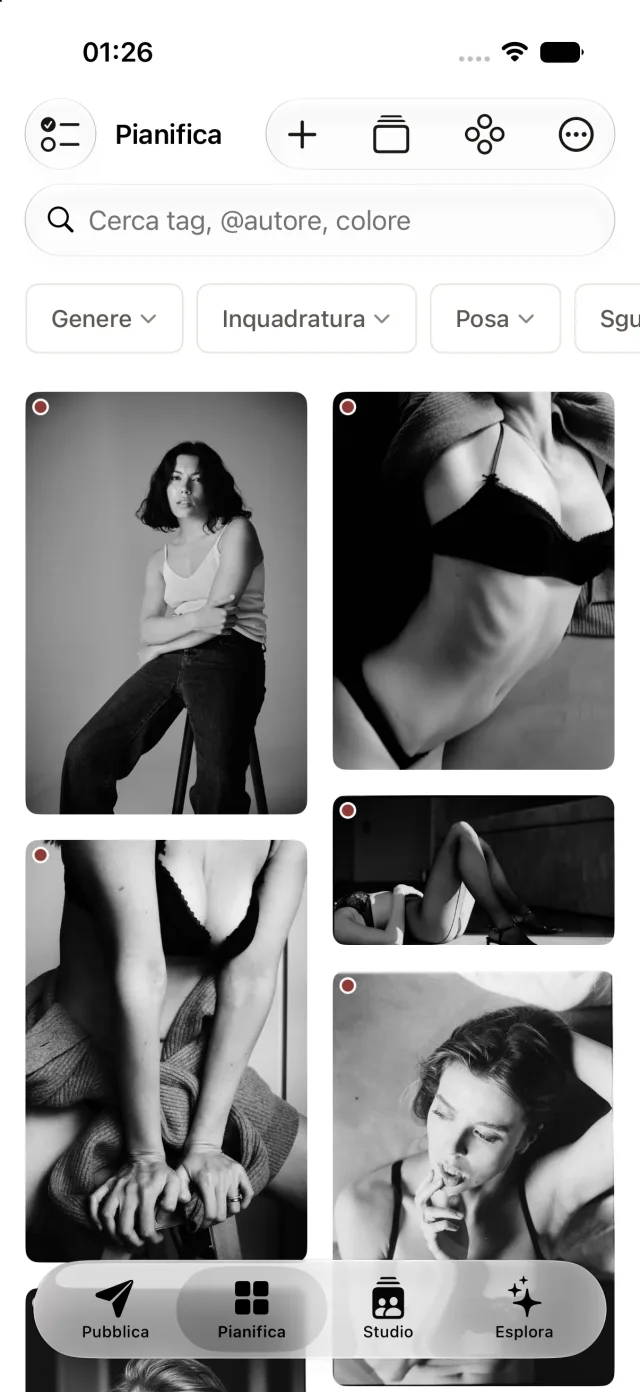
No. 01 — Rate and organize
You say why you like it; the AI does the rest.
On the first pass, rate “I like this for…” on each inspiration: genre, framing, pose, expression, light, color, and more. Your iPhone’s AI suggests the rest. In the filter bar, tap a category to open it, then choose the criteria you’re looking for.
- Filters by category, reason for liking, and AI tags—all combinable
- Search by tag, author, color, or note
- Multiple selection: add a whole batch of photos to a board at once
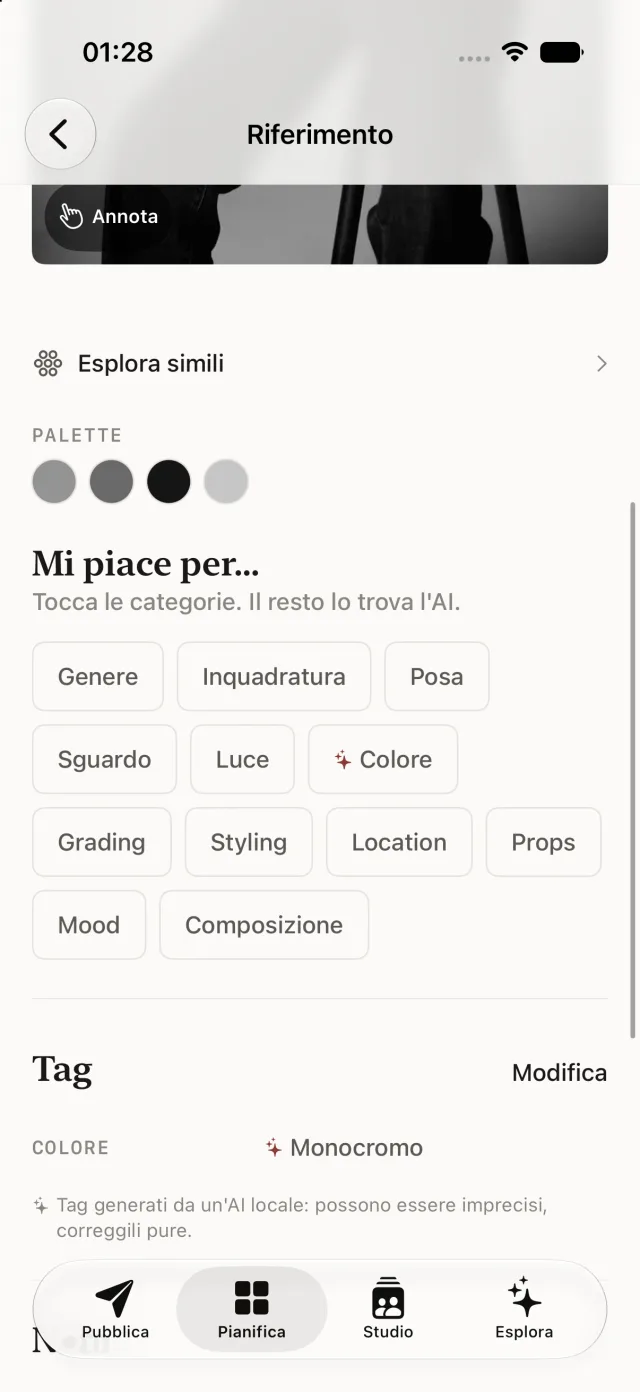
No. 02 — Automatic Clusters
Themes emerge on their own, without you having to tag anything.
Obscura groups inspirations by recurring themes—same location, same pose, same mood—and suggests a tag and the dominant theme. Just one tap is all it takes to turn a theme into a real board.
- Themes calculated on the device, without manual tagging
- Large-photo preview before creating the board
- “Recalculate clusters” after many new votes
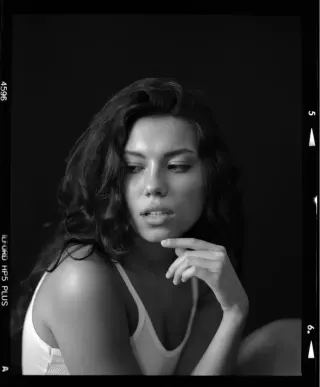


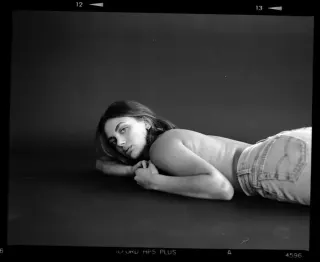


No. 03 — Sectioned board
One section for each part of the shoot.
Beauty, hairstyle, location, poses: divide the board however you like, drag photos from one section to another, rename or delete them from the menu. The same structure appears in the web gallery and in the exported PDF.
- Custom sections: create, rename, and reorder them
- Add photos in bulk from the library, not one at a time
- PDF laid out by section, with or without notes
No. 04 — Annotations
A dot, an arrow, a note on the photo.
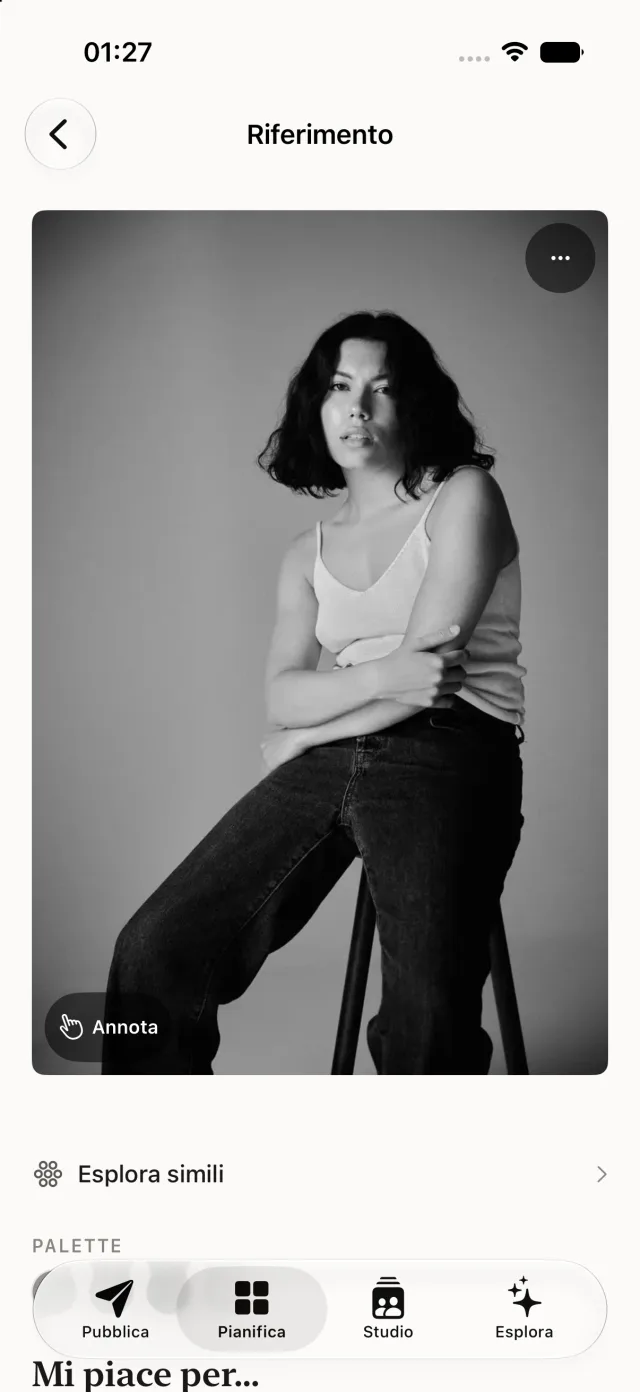
Tap an empty spot on the reference image and place a dot with a note; drag it to move it, add an arrow pointing to a specific detail. Annotations remain private until you choose to “burn” them into the shared gallery.
- Dots and arrows, movable with your finger
- Toggle full view ↔ crop to annotate even outside the cropped area
- In the gallery and PDF only if you choose “with notes”
No. 05 — On set
The screen stays on as long as you’re shooting.
On-Set Mode: one photo at a time, full screen on a black background, screen that doesn’t turn off. Mirror it when needed: whoever's posing sees themselves as in a mirror. The shot list keeps track of what you’ve already shot.
- Swipe through the references, in the order of the board sections
- Checklist-style shot list, with a PDF of the checklist
- The section name is always visible
No. 06 — Share
A private link that you control.
Publish the board as a web page: a non-guessable link, a pre-generated PIN, and an expiration period of 7 to 90 days. Visitor ratings are optional—if you enable them, viewers can “like” the photos, and only you can see the counts.
- PIN and expiration date: no access without both
- Visitor voting, opt-in, to decide together
- Revoke access anytime; automatic deletion upon expiration
No. 07 — Explore
From one photo to all the ones that look like it.
The Explore tab cycles through all the clipped references in a new order every time you open it. From any photo, you can tap “Explore Similar”: not just visual similarity, but a mix of appearance, tags, and color palettes—tap a result and it becomes the new focal point.
- Masonry layout, stable as you scroll
- Multi-signal affinity: appearance + tags + color palette, not just pixels
- A tap refocuses your exploration; “Back” takes you to the previous step
Try it